Install Mentionlink on WordPress
Option 1 (preferred): Install the WordPress Mentionlink Plugin
Please install the dedicated WordPress Mentionlink Plugin from the WordPress.org marketplace by following the instructions below. To get started, navigate to the admin dashboard of your WordPress blog.
Step 1.1: Go to the WordPress Plugin Directory
- Click the Add Plugin button.
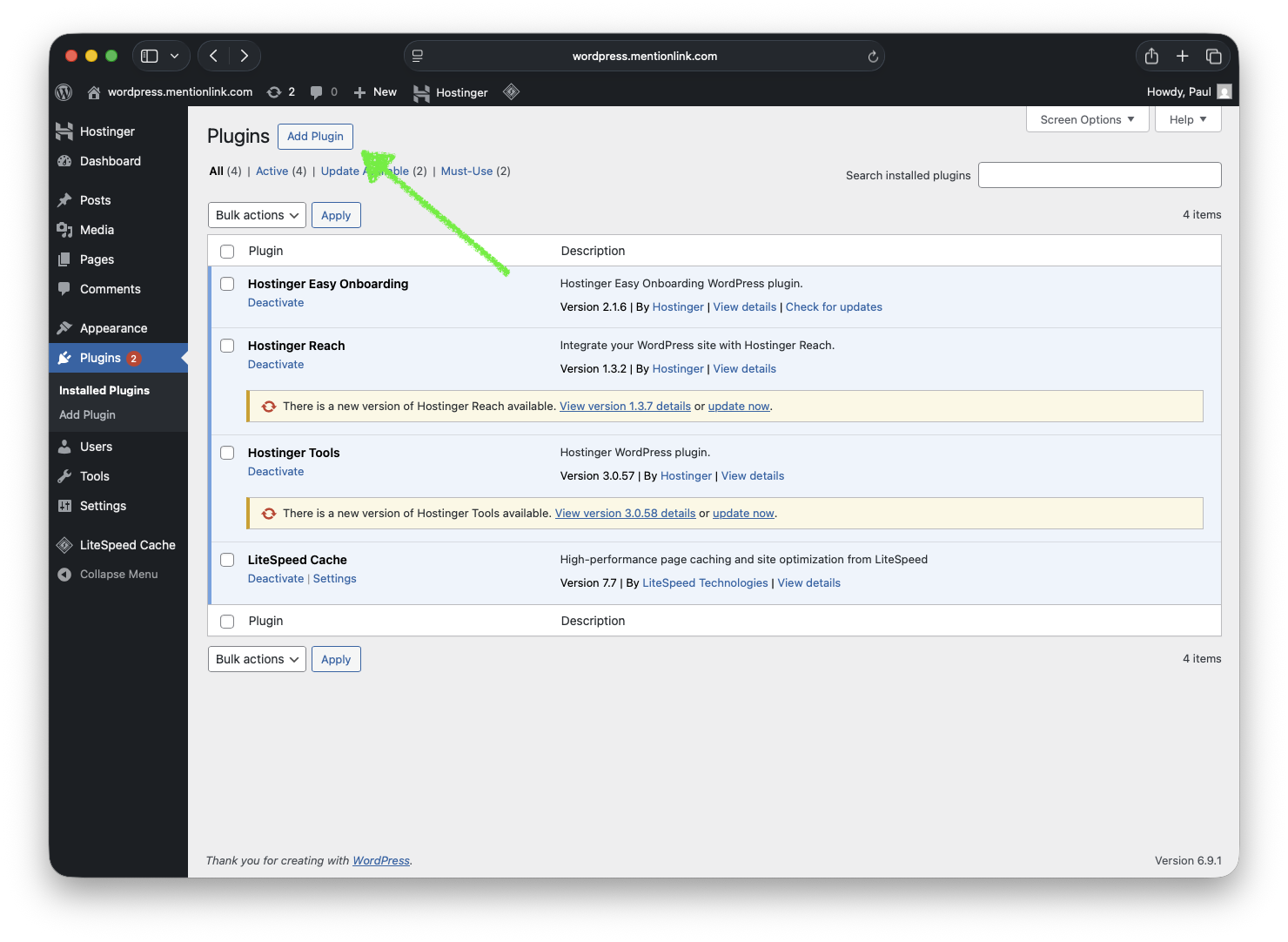
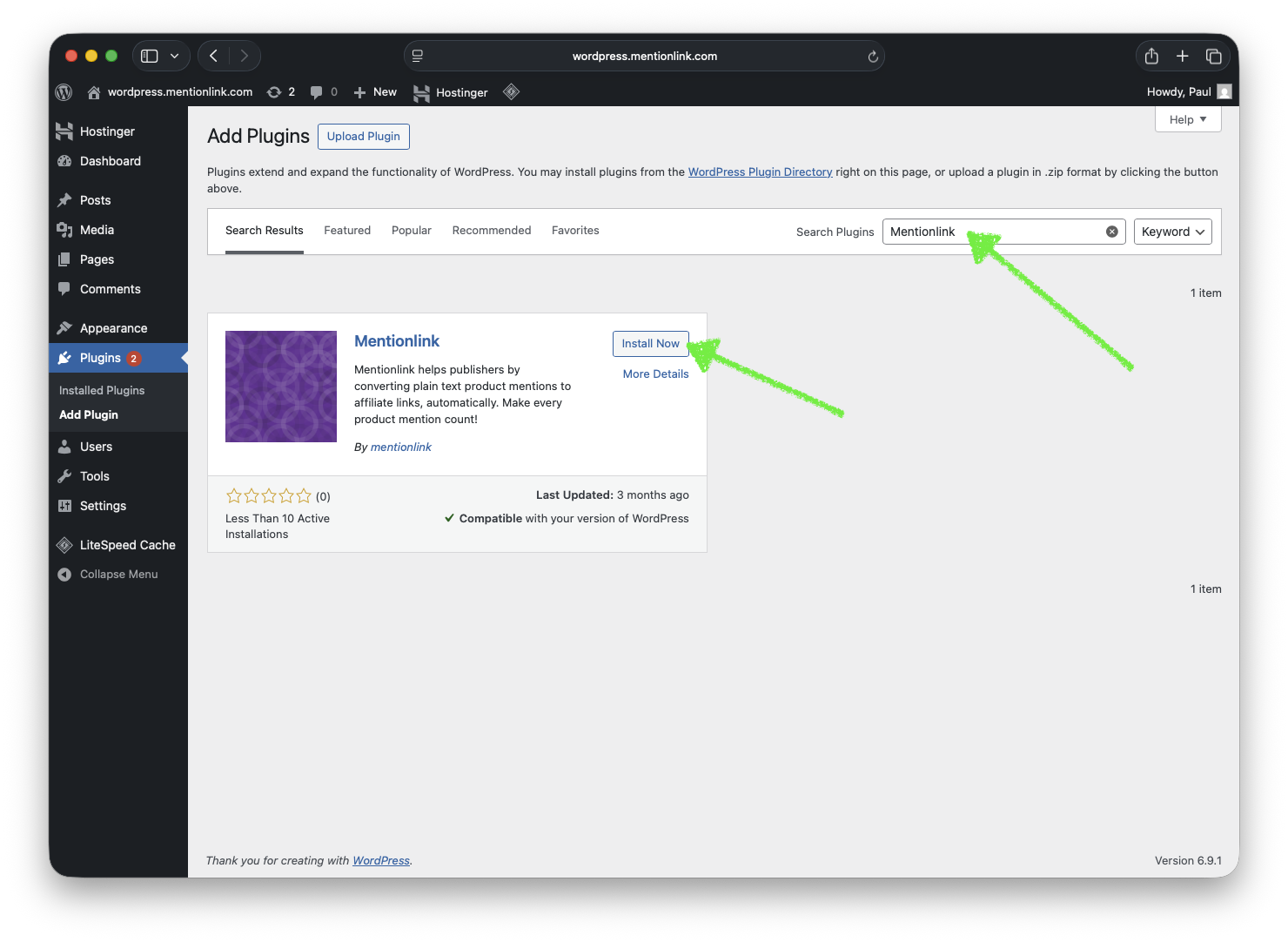
Step 1.2: Install the Mentionlink Plugin
- Type Mentionlink in the Search Plugins text box and then press the enter button on your keyboard.
- Once the Mentionlink Plugin is displayed in the results, click on the Install Now button.
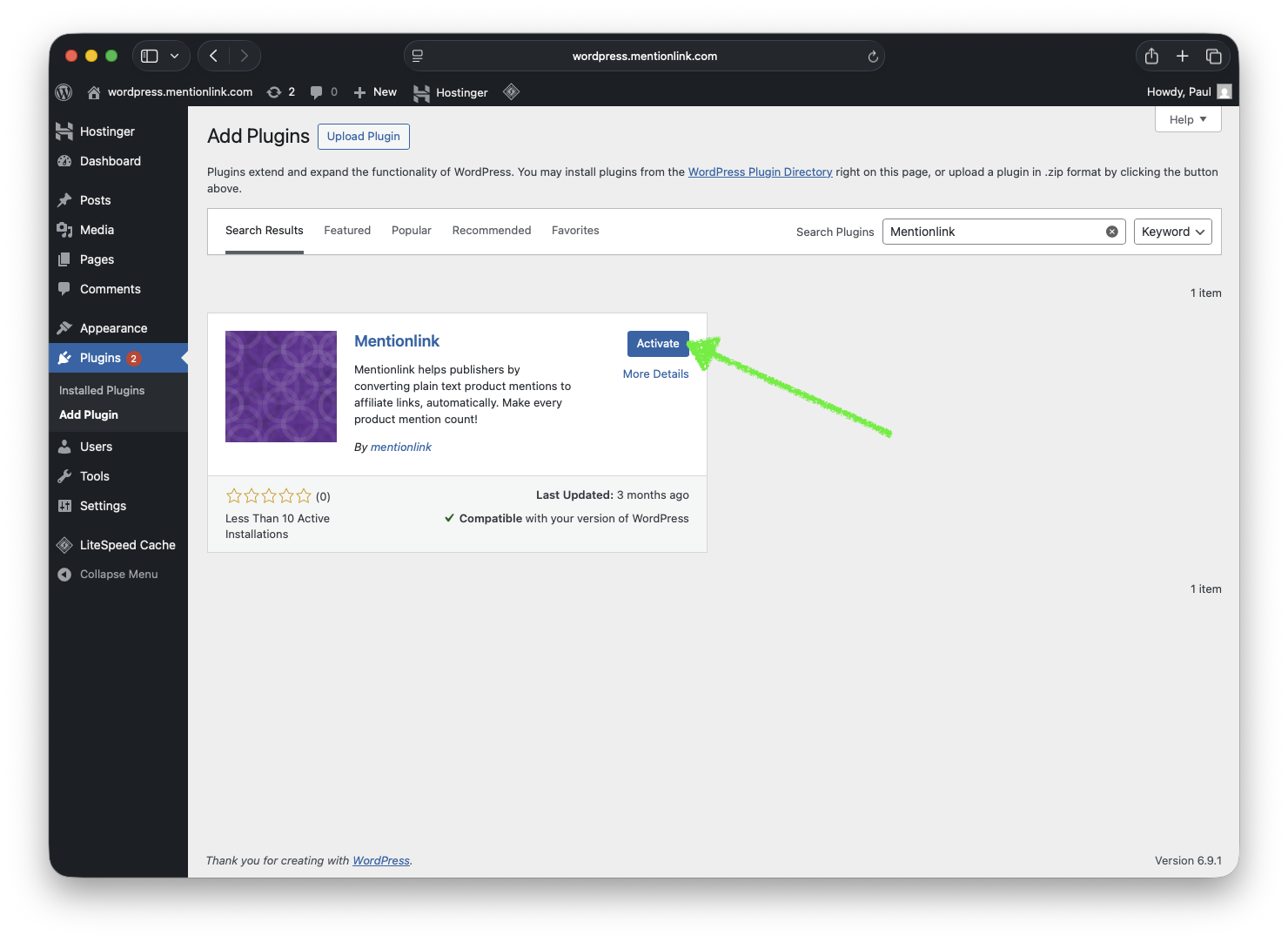
Step 1.3: Activate the Mentionlink Plugin
- Click on the Activate Now button.
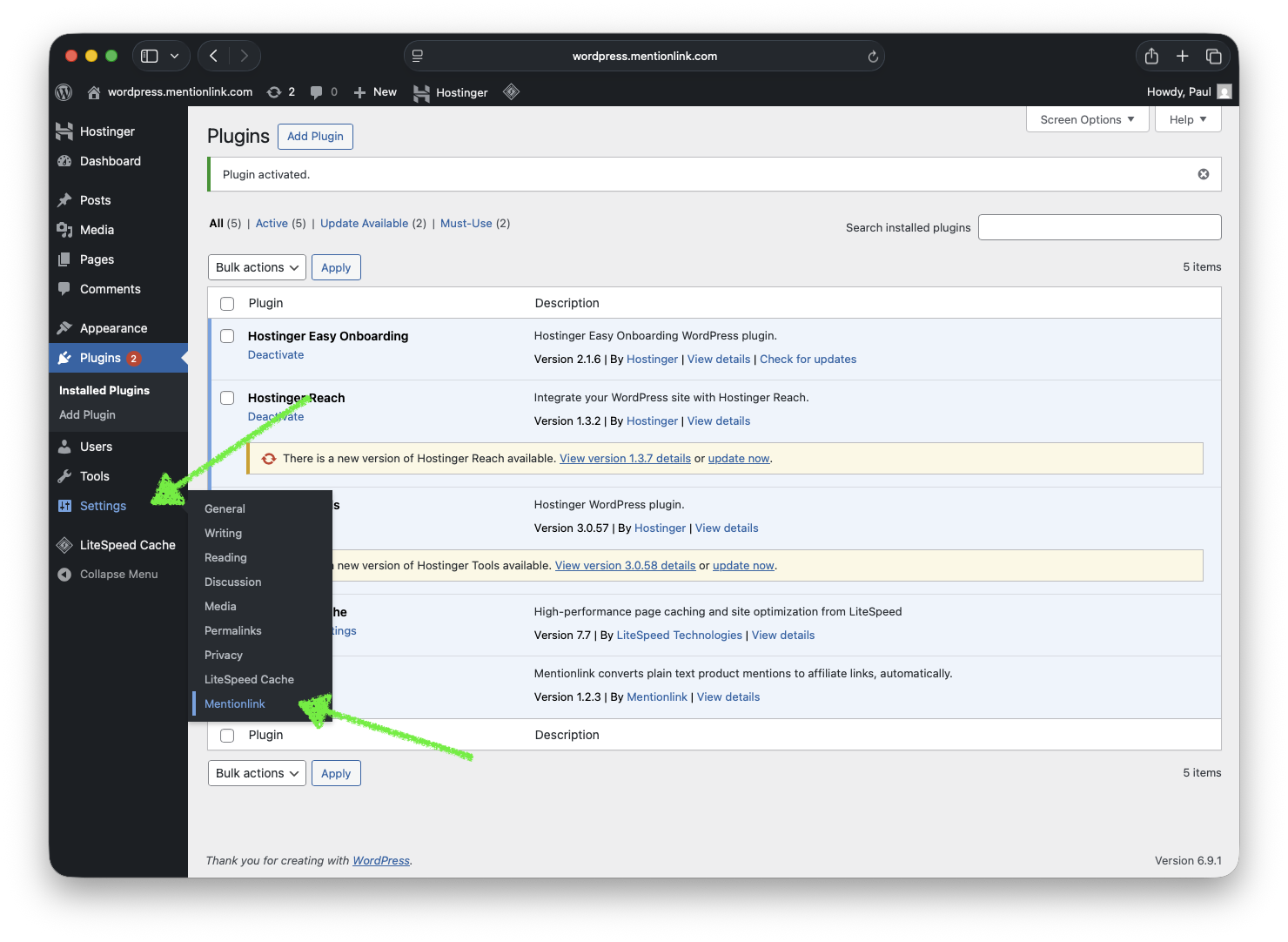
Step 1.4: Go to the Mentionlink Plugin Settings
- Hover over the Settings menu item and then click on the Mentionlink menu item.
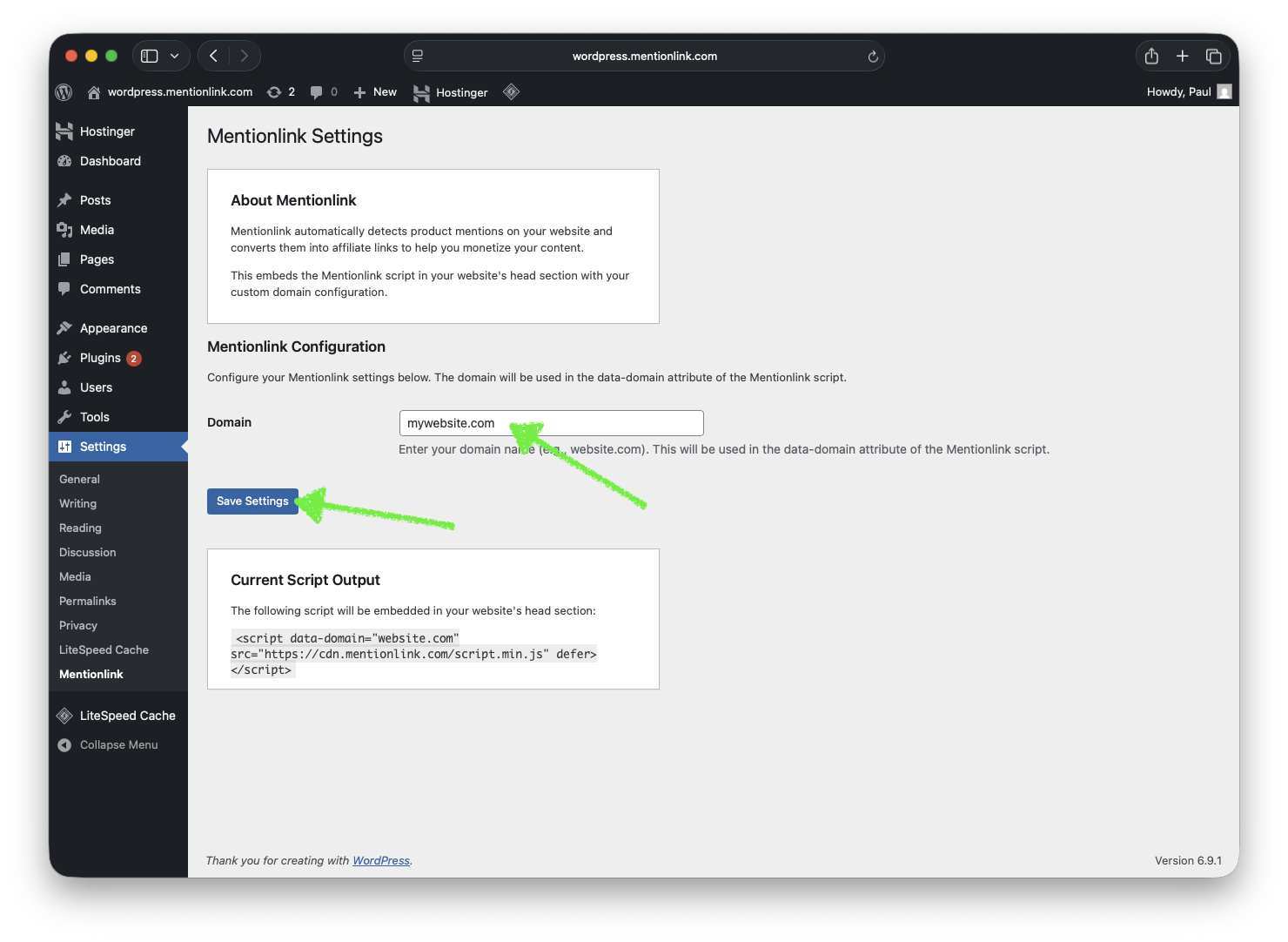
Step 1.5: Configure the Mentionlink Plugin
Warning
Do NOT add the www. prefix of your domain, nor the http:// or https:// parts.
For example, if you host your website at https://www.mycookingblog.com, only enter the mycookingblog.com into the textbox.
- Type in the domain of your blog without the
www.subdomain or thehttp://orhttps://parts. - Click on the Save Settings button.
Step 1.6 (optional): Purging the Cache
If you're using a cache, such as the LiteSpeed Cache, you'll need to purge all pages for the Mentionlink plugin to start working. You'll only need to do this once after installing Mentionlink and setting the domain property in the Settings menu item and the Mentionlink submenu item, respectively.
Purging the LiteSpeed Cache
Go to the LiteSpeed Cache section of the sidebar. Then click on the Cache menu item. On the Cache tab, toggle the Enable Cache to off, and then click Save Changes at the bottom of the page. Once this is done, toggle the Enable Cache back to on, and then click Save Changes at the bottom of the page. After doing this cycle, the Mentionlink script will start to be embedded on your pages.
Step 1.7: Congratulations
- The Mentionlink plugin has been successfully installed. Congrats!
Option 2 (alternative): Manual WordPress Installation Instructions
- Navigate to your WordPress admin dashboard. The dashboard can usually be found at
https://website.com/wp-admin/wherewebsite.commust be replaced with your own domain. - In the left sidebar, hover over Appearance and click on Theme File Editor.
- In the right sidebar, click on Theme Header (header.php).
Then, add the following line inside the <head> tag, just before the </head> tag closes.
<head>
  <?php wp_head(); ?>
  <script data-domain="website.com" src="https://cdn.mentionlink.com/script.min.js" defer></script>
</head>
Questions?
Please read the frequently asked questions.
Test Your Installation
Open DevTools in Chrome and you should see a success message being logged from Mentionlink. If you are having trouble confirming that your installation was successful, please reach out to support@mentionlink.com.